

📸 At a glance
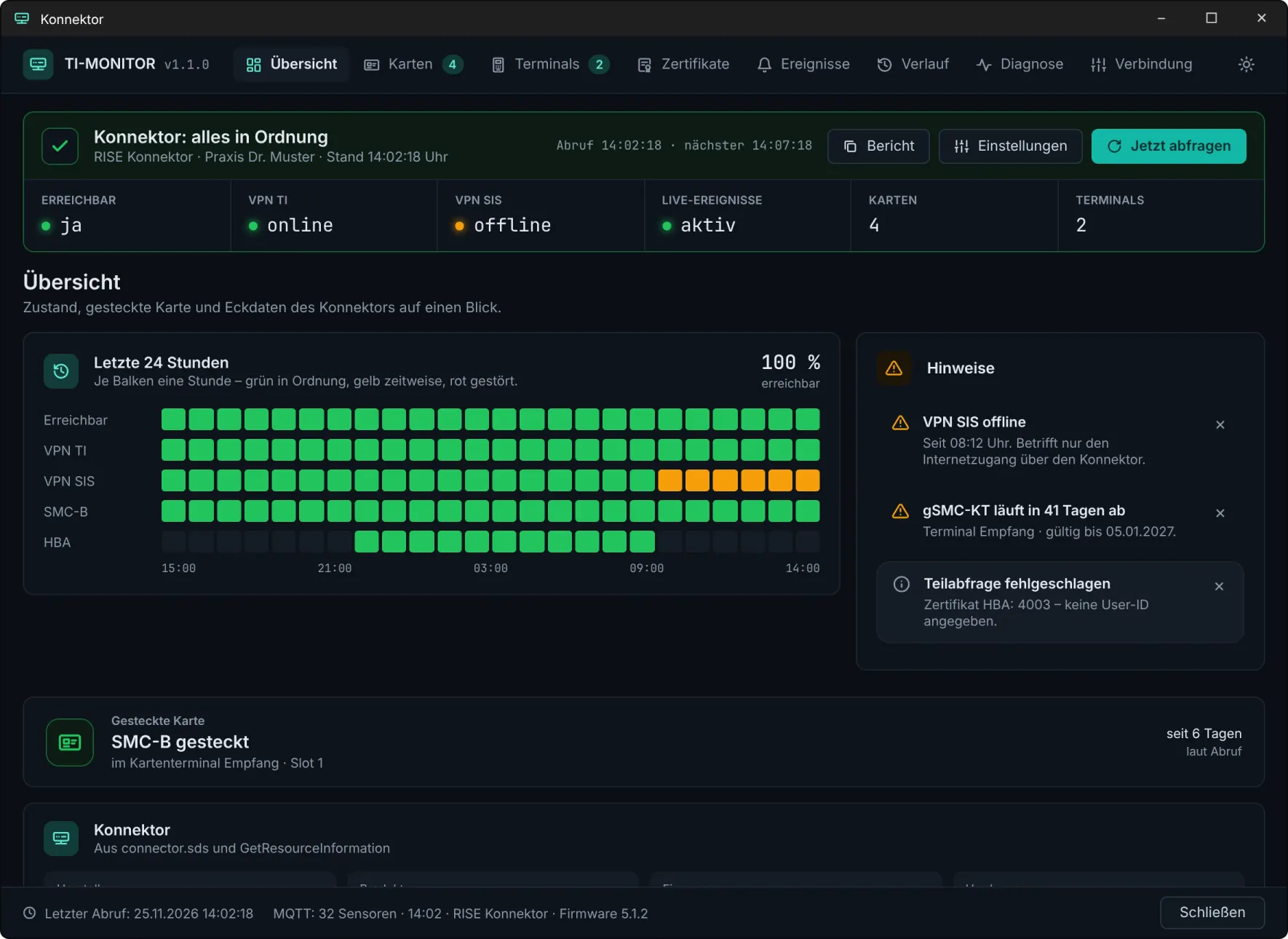
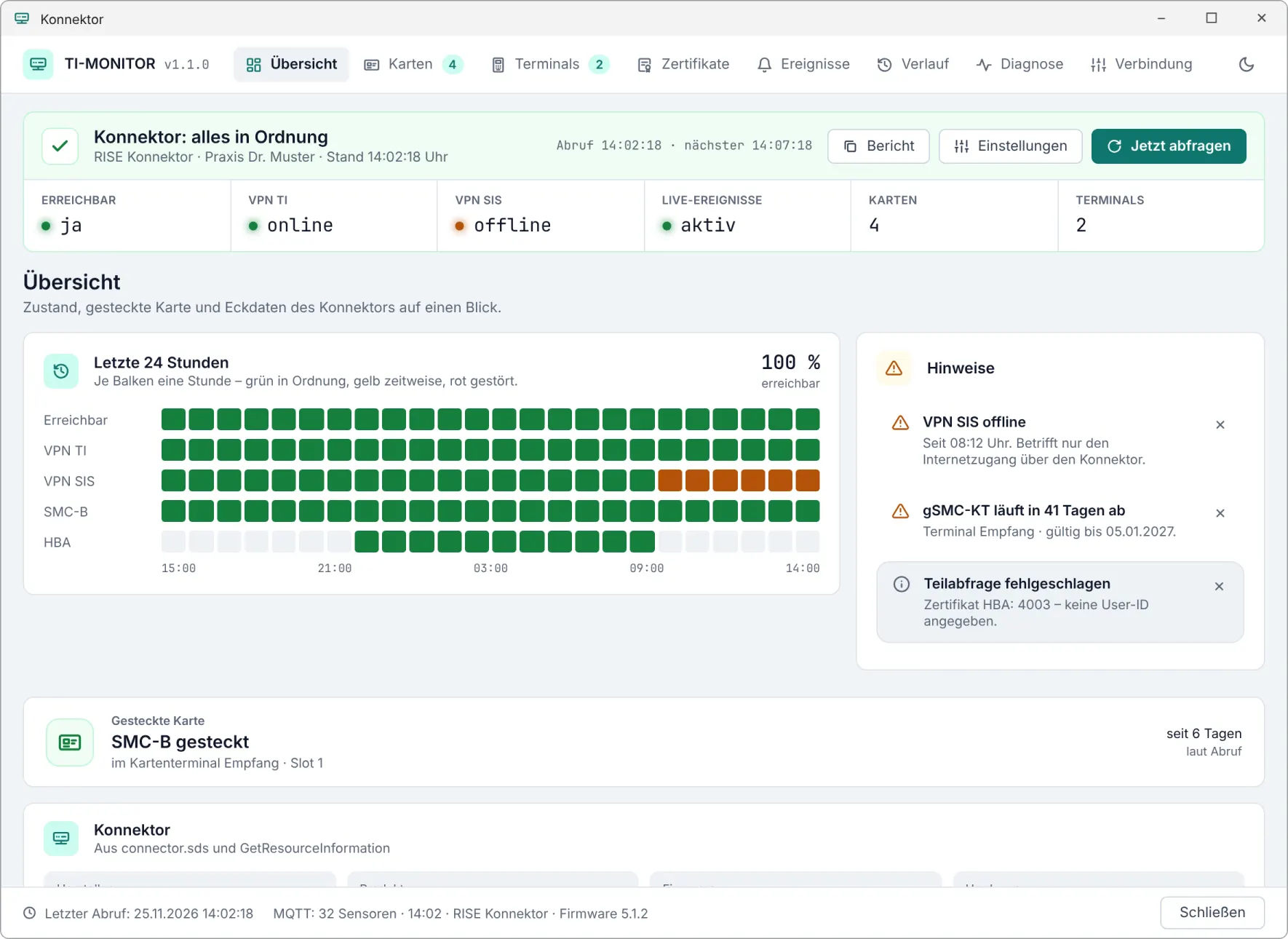
TI-Monitor sits in the Windows notification area and polls the local TI connector at a fixed interval (default 5 minutes). Live events arrive even faster via a CETP subscription: a card inserted or removed shows up in seconds, not on the next poll. Everything lands in the Leitstand (command center) window, in the tray traffic light and – the special feature – in Home Assistant as a proper device with sensors.
💡 Why TI-Monitor?
- Two worlds, one app – the tray is for the staff at the workplace, Home Assistant is for the admin on the sofa
- Command center instead of log spam – status band, hour tiles for the last 24 hours and dismissible notices in one window
- Read-only by design – monitoring without touching card or PIN operations
- Live instead of polling – card and terminal events arrive through the event subscription
- Certificate radar – every expiry in one sorted list, warnings at 90/30/7 days, plus an
.icscalendar for Outlook - Nothing hidden – connector stays in the LAN, passwords protected by Windows DPAPI
✨ Features
| Feature | What it does |
|---|---|
| 🛡️ Tray traffic light | Green (all OK) / amber (notice) / red (fault or not reachable) / grey (not configured or first query running) |
| 🖥️ Leitstand window | Areas as tabs, status band with KPI tiles (reachable, VPN TI/SIS, live events, cards, terminals), 24-hour history and notices at a glance |
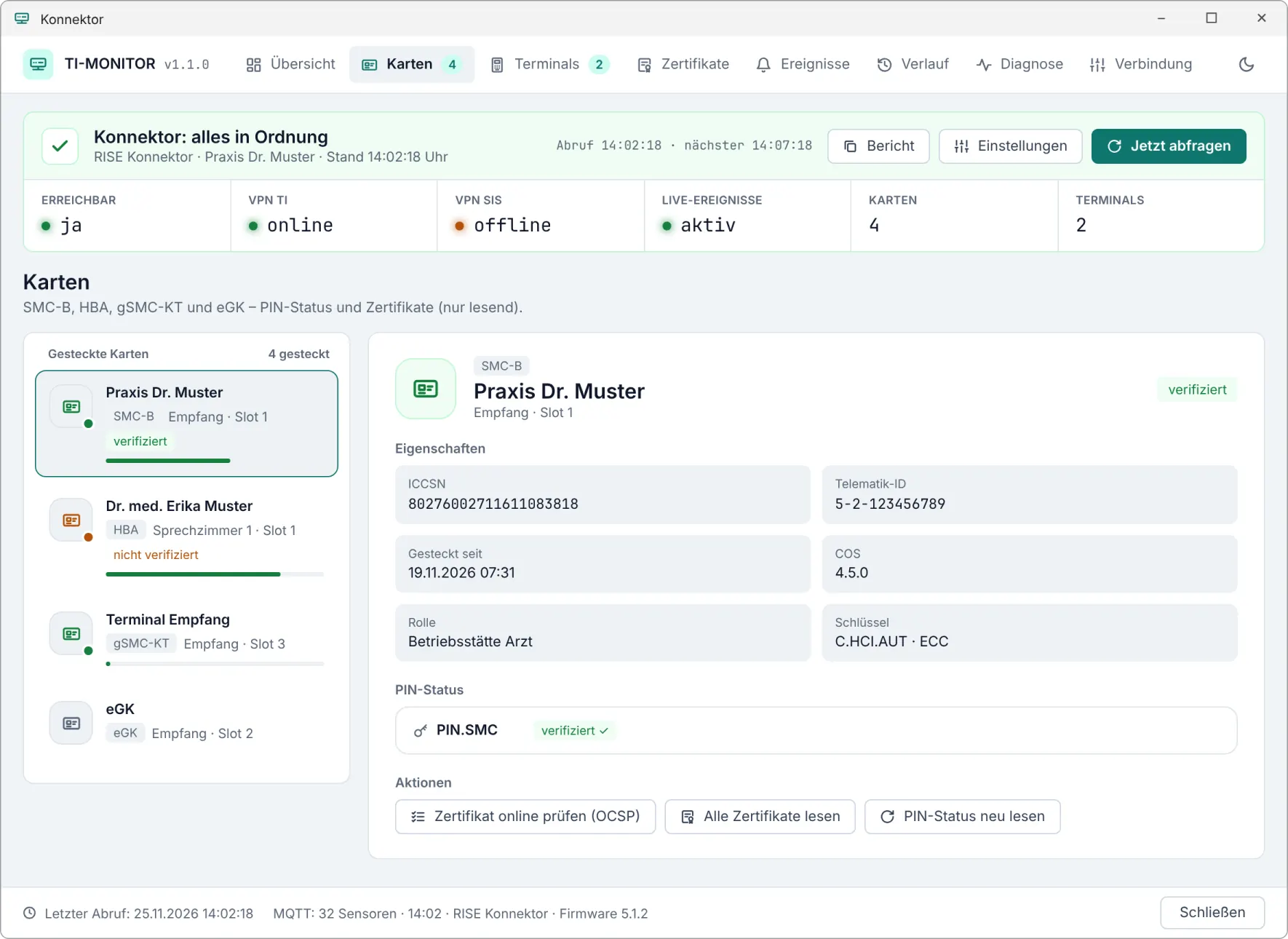
| 🔌 Full connector view | SDS, operating faults, card terminals, cards, PIN status, certificates, clock drift |
| ⚡ Live events | CETP subscription: card inserted/removed, terminal connected/disconnected – immediately, not on the next poll |
| 🔔 Windows toasts | Connector unreachable, VPN offline, SMC-B not unlocked, PIN blocked, certificate expiry 90/30/7 days; notices in the window can be dismissed with ✕ |
| 🏠 Home Assistant | MQTT discovery with one device per practice, fixed sensors and last will (“unavailable” when the PC is off); configurable send interval |
| 📜 Certificates | Including the connector runtime (gSMC-K) and additional client system certificates you add yourself |
| 📈 14-day history | Reachability, VPN, SMC-B and HBA as day tiles with an hours view |
| 📅 Expiry calendar | All certificate dates as .ics for Outlook, with reminders |
| ⬇️ Updates | Releases from this Forgejo, SHA-256 verified, optional silent install |
| 🚀 Delayed autostart | Starts silently in the tray at sign-in; monitoring waits a configurable delay (default 45 s) and, if desired, for the network – so no false alarms while the PC is still booting |
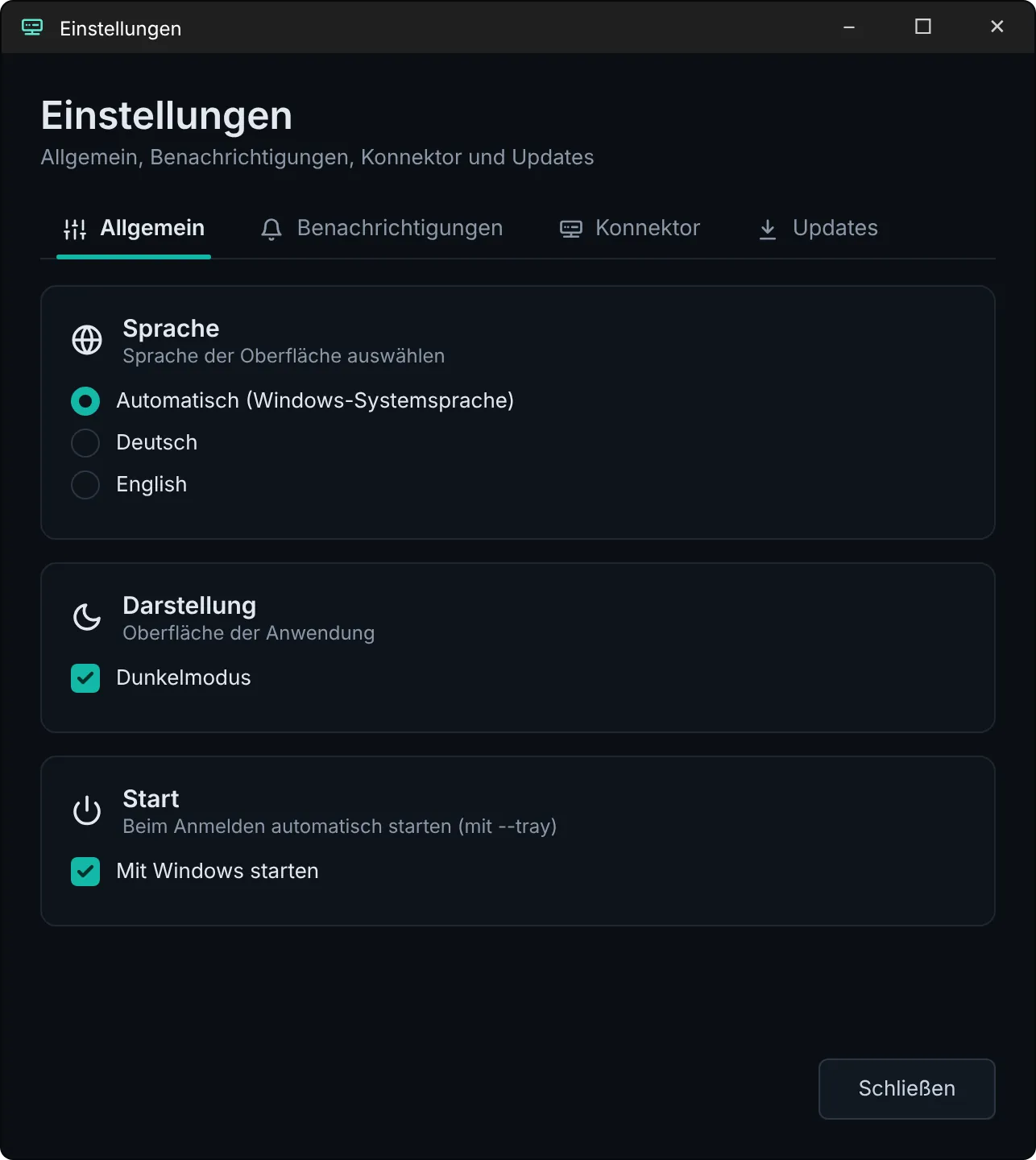
| 🌗 Light & dark, German & English | Toggle via moon/sun in the title bar or under Settings → General |
What the app reads
| Area | Source | Content |
|---|---|---|
| Connector | connector.sds | Manufacturer, product, firmware/hardware, services and versions, TLS requirement |
| Operating state | EventService.GetResourceInformation | VPN TI and VPN SIS, active fault states (EC_*) |
| Card terminals | EventService.GetCardTerminals | Name, CtId, IP, MAC, slots, connected yes/no |
| Cards | EventService.GetCards | SMC-B, HBA, eGK, gSMC-KT: holder, ICCSN, slot, expiry date |
| PIN status | CardService.GetPinStatus | Verified, transport PIN, blocked, remaining attempts (read-only) |
| Certificates | CertificateService.ReadCardCertificate / VerifyCertificate | C.AUT, C.ENC, C.SIG, C.QES: expiry, issuer, Telematik-ID; OCSP check on demand |
| Connector certificate | TLS handshake (gSMC-K) | Expiry date = end of the connector’s runtime (HTTPS only) |
| Time | HTTP Date header | Drift of the connector clock against the PC |
| Live events | EventService subscription + CETP | CARD/INSERTED, CARD/REMOVED, CT/CONNECTED, CT/DISCONNECTED, CERT/CARD/STATUS |
ReadVSD) does not take place – TI-Monitor only sees technical state, never patient data.📜 Certificates
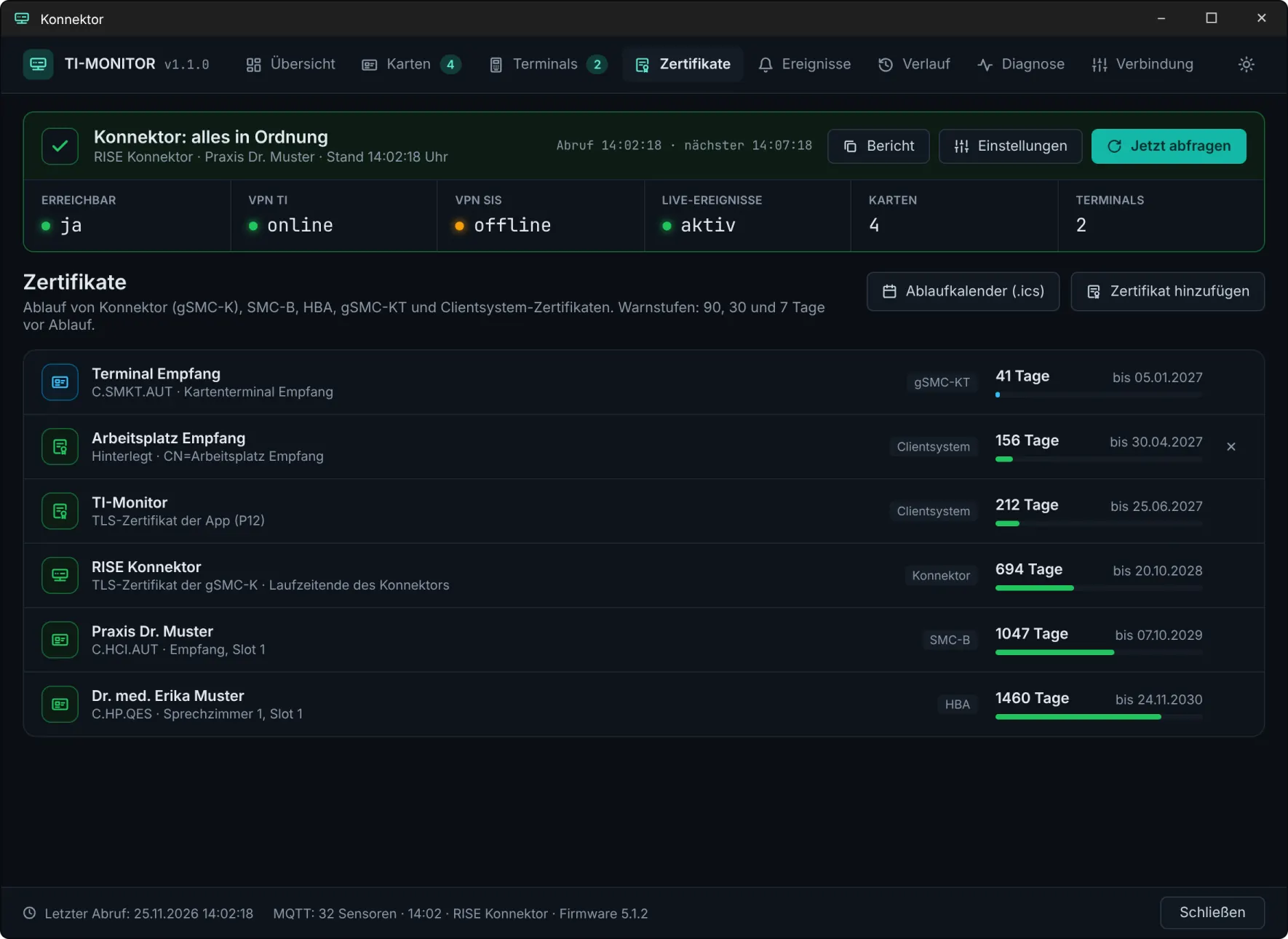
The Certificates area lists every expiry as a row, the most urgent on top:
- Connector (gSMC-K) – the connector’s TLS certificate. Its expiry is the end of the connector’s runtime; order a renewal or swap in time.
- SMC-B, HBA, gSMC-KT – from the inserted cards.
- App’s client system – the P12 that TI-Monitor signs in with.
- Other client systems – added via Add certificate as
.cer/.crt/.pem(no password) or.p12/.pfx(password read once), e.g. from other workplaces or the practice management system. Only name, holder, expiry and fingerprint are stored – remove via the ✕ in the row.
For all of them the same applies: toast warning at 90, 30 and 7 days and at expiry, an entry in the expiry calendar and a sensor in Home Assistant.
🏠 Home Assistant (MQTT)
Prerequisite is an MQTT broker (e.g. the Mosquitto add-on) with the MQTT integration set up. TI-Monitor then uses MQTT discovery: each configured practice appears as one device with fixed sensors – no YAML, no template work. The footer of the Leitstand shows the current state (e.g. “MQTT: 31 sensors · 14:02”).
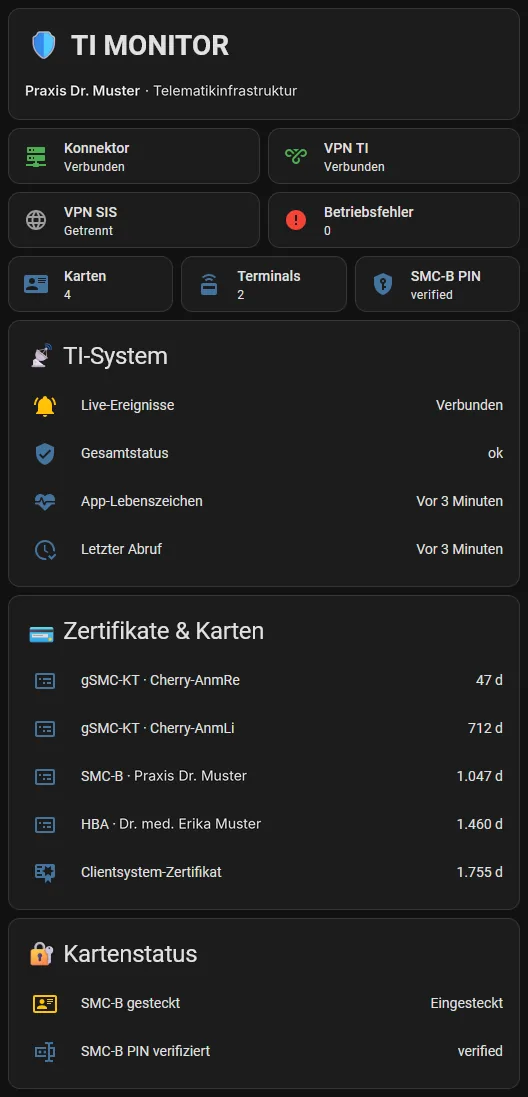
Setup under Connection → Home Assistant: enable “Send to Home Assistant”, fill in broker, port (1883, or 8883 with TLS), user and password, give the practice a name (it forms the entity slug; defaults to the SMC-B holder) and set the send interval. 0 sends with every connector query; a custom interval sends independently of the queries, and “Send changes immediately” still pushes state changes (VPN, card, status …) right away. Without a broker the Home Assistant REST API (address and long-lived access token) works too.
| Entity (excerpt) | Content |
|---|---|
binary_sensor.timonitor_<practice>_erreichbar | Connector reachable |
binary_sensor.timonitor_<practice>_vpn_ti / _vpn_sis | VPN TI / VPN SIS online |
binary_sensor.timonitor_<practice>_smcb_gesteckt | SMC-B inserted |
sensor.timonitor_<practice>_status | ok, warnung, stoerung, nicht_erreichbar, abfrage_abgelehnt |
sensor.timonitor_<practice>_karten / _terminals / _betriebsfehler | Inserted cards, connected terminals, active faults |
sensor.timonitor_<practice>_smcb_pin | SMC-B PIN state (attributes verifiziert, versuche_uebrig) |
sensor.timonitor_<practice>_smcb_<iccsn>_ablauf etc. | Days left for SMC-B / HBA / gSMC-KT (last six of the ICCSN) |
sensor.timonitor_<practice>_konnektor_ablauf | Days left of the connector certificate (gSMC-K) |
sensor.timonitor_<practice>_clientsystem_ablauf | Days left of the app’s client system certificate |
sensor.timonitor_<practice>_firmware | Connector firmware (attributes manufacturer, product, hardware …) |
sensor.timonitor_<practice>_app_lebenszeichen / _letzter_abruf | App heartbeat and time of the last query |
- PC off or app closed: via last will all sensors of the practice become unavailable
- Several PCs of the same practice under the same name keep the practice reachable as long as one is running
- Cards removed while the app was not running are cleared from Home Assistant on the next connect
Example automation for expiring certificates:
trigger:
  - platform: numeric_state
    entity_id:
      - sensor.timonitor_praxis_muster_smcb_083818_ablauf
      - sensor.timonitor_praxis_muster_konnektor_ablauf
    below: 60
action:
  - service: notify.notify
    data:
      message: "{{ state_attr(trigger.entity_id, 'friendly_name') }}: {{ trigger.to_state.state }} days left"
📋 Requirements
- Windows 10 (from 1809) or 11, 64-bit (x64)
- No separate runtime – the installer ships .NET 10 and the Windows App SDK self-contained, which keeps the setup file small
- Network: LAN access to the connector, access to the MQTT broker or Home Assistant, HTTPS to
git.jimmybones.defor updates
🚀 Quick start
- Download the latest release (
TIMonitor-*-Setup.exe) and run it – no administrator rights needed, it installs to%LocalAppData%\Programs\TIMonitor. - On first start the Leitstand opens directly in the Connection area.
- Enter the connector address (IP or hostname, optionally with port, e.g.
192.168.1.10or10.0.0.5:8443) and keep TLS (https) enabled. - Select the client certificate (
.p12/.pfx) of this client system and its password – the client system must be registered in the connector administration. - Fill in the call context from the information model: mandant ID, client system ID, workplace ID; the user ID only if HBA access fails with
4003 Keine User-ID angegeben. - Save and connect. On the first TLS handshake the connector’s SHA-256 fingerprint appears – compare it with the connector administration and trust it only if they match. If the certificate changes later, the app warns explicitly.
| Check | Why it matters |
|---|---|
| Workplace allowed for EventService, CardService and CertificateService | Without these permissions the app only sees fragments |
| Windows firewall allows inbound connections from the connector on TCP port 48150 | Enables live events; without it the app polls on the set interval instead |
| Autostart delay covers slow networks | Default 45 s and an optional “wait for network” keep the first minutes free of false alarms |
🖱️ Usage
| Action | Effect |
|---|---|
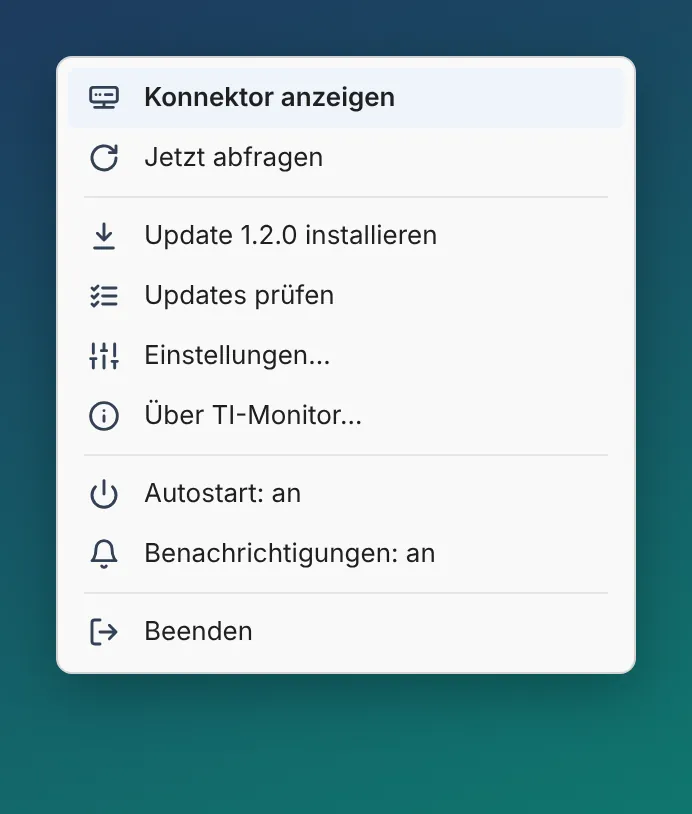
| Left-click the tray icon | Opens the Leitstand window |
| Right-click menu | Query now, updates, settings, autostart, notifications and exit – all with icons |
| Close the window | Monitoring continues in the background |
🔐 Data & privacy
- The connector connection stays in the local network – no cloud, no vendor connection
- Passwords sit DPAPI-encrypted in
settings.json; only the signed-in Windows user can read them - The private key of the P12 file stays in memory and is never written to disk
- The connector certificate is pinned via SHA-256 after you confirm it; a changed certificate triggers a clear warning
- The event listener only accepts connections from the connector’s address and discards plaintext when the connector requires TLS
- Updates arrive only over HTTPS from
git.jimmybones.deand are verified againstchecksums.txt(SHA-256)
File (under %AppData%\TIMonitor\) | Content |
|---|---|
settings.json | Language, appearance, autostart, updates, connector and Home Assistant access, added certificates (metadata only) – passwords DPAPI-encrypted |
connector-history.json | Connector history over 14 days (can be switched off) |
connector-warnings.json | Already reported expiry levels and PIN states – prevents duplicate toasts |
error.log, update-install.log | Error and update log |
⚠️ Known limitations
- Windows x64 only (10 / 11)
- Live events need an open inbound port 48150 – otherwise the poll interval applies (default 5 minutes)
- The connector does not expose other client systems through any interface – their certificates must be added manually
- Monitoring replaces neither the connector administration nor the gematik portal
🗂️ For developers
Requirements: .NET 10 SDK, Inno Setup 6 for the installer, PowerShell 7 for releases.
git clone https://git.jimmybones.de/jimmybones/TI-Monitor.git
cd TI-Monitor

# Build only (publish\TIMonitor.exe)
.\Build.ps1

# Build + installer + checksums.txt (installer-out\)
.\Build.ps1 -Version 1.0.0 -Installer

# Tests
dotnet test tests\TIMonitor.Tests.csproj

# Release on Forgejo: tag, build, create release, upload installer and checksum
.\Release.ps1 -Version 1.0.0 -Notes "First version"
The app queries …/api/v1/repos/jimmybones/TI-Monitor/releases/latest. A release is installable only once TIMonitor-<version>-Setup.exe and checksums.txt are attached; prereleases (1.3.0-beta.1) are never pushed to stable installs.
Stack: WPF with a tray icon · net10.0-windows · Windows App SDK toasts · MQTT · Inno Setup · MIT License.
TI-Monitor on Forgejo
Downloads, release notes, source code and issues – hosted on our own Forgejo instance.